Export a Service Record
Choose what to include when sharing a single visit as PDF, Excel, or CSV.
Open the export options
Open a completed Service Record from Records, then select the download icon. You can export records with live-session data or manually entered observations.
Choose CSV for raw data, Excel for a formatted workbook, or PDF for a formatted document. PDF requires Solo or Teams.
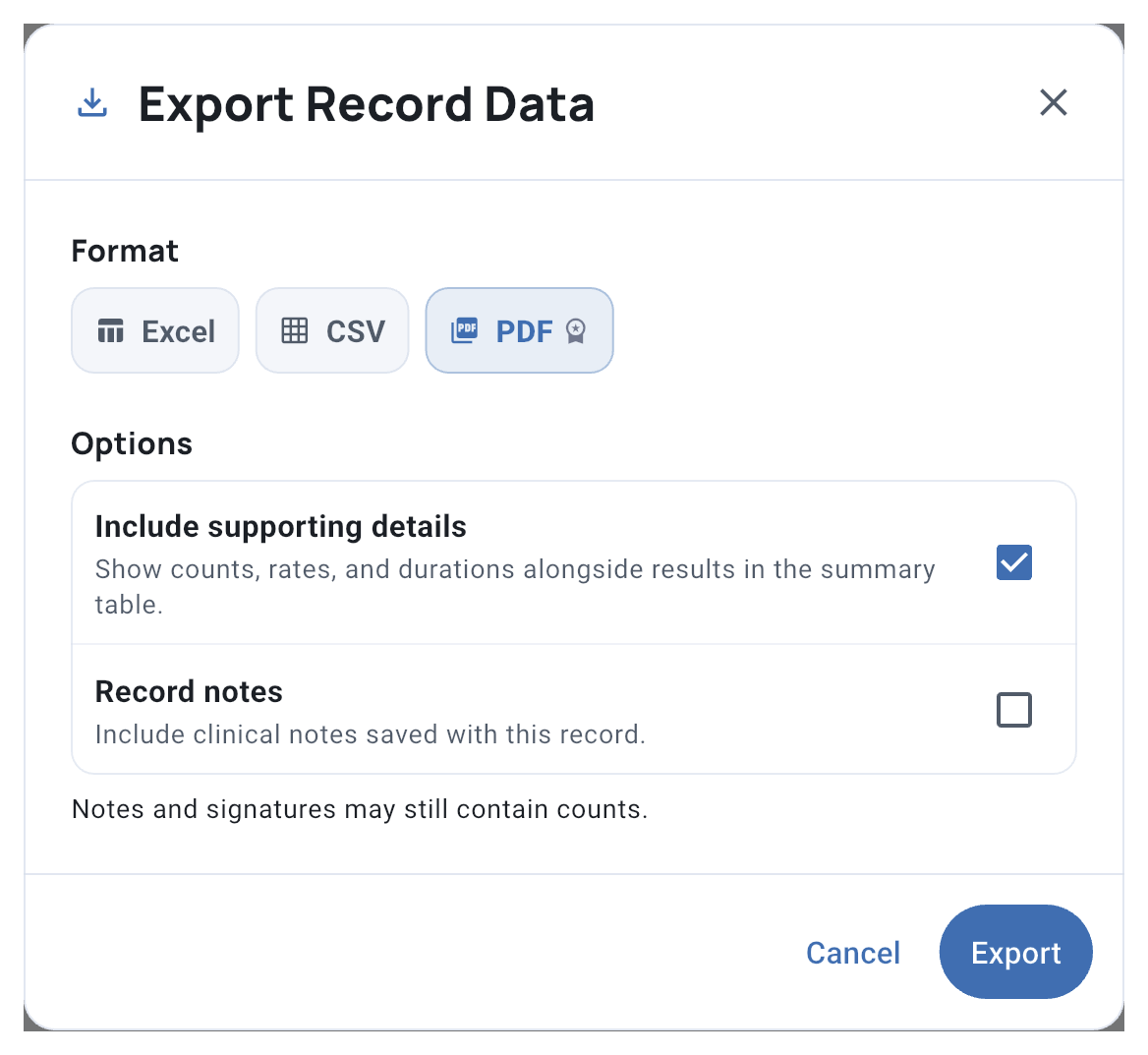
Select the image to view it at full size.
Choose what the PDF includes
For a simpler summary table, turn off Include supporting details. Your results stay visible. This option starts on each time you export.
Choose Record notes and Signatures when available. Live-session records can also include Timeline events. These sections may still show counts when supporting details are off.
This choice affects the PDF only; Excel and CSV stay the same.
Select Export when ready. Share the file only with people authorized to receive the client’s information.
Related guides
- Signed Service Records - Complete signature and review steps
- Generate Report - Create Daily or longer-term reports
- Basic Export - Export client data as Excel or CSV