Programs, Skills & Behaviors
Add behaviors and skills, then review targets with filters, trend colors, and progress graphs.
Add a behavior or skill
Open a student or client profile and select Add Skill or Add Behavior. On a phone, open Programs and tap +.
Name the target, choose its Recording Method, and check Goal Direction. Add an Operational Definition so everyone knows what to count or measure.
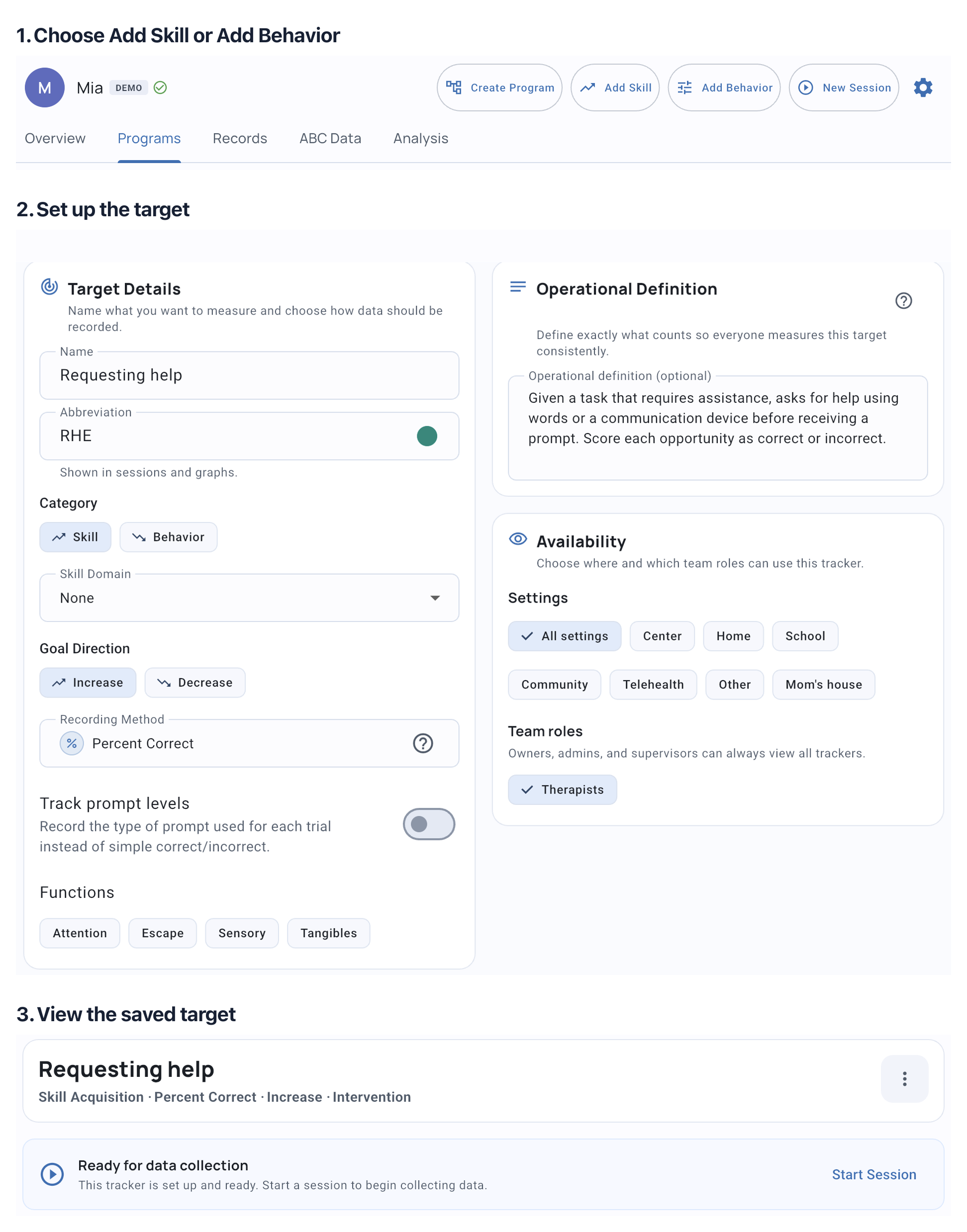
To group related targets on Solo or Teams, create a program. A standalone target can still have objectives and mastery criteria.
Find current and completed work
The Programs tab brings programs, skills and behaviors together. Open a target to see its graph and current objective, or a program to review its related targets.
Open the profile’s gear menu, choose Edit client or Edit student, then Targets. Use the filters to find active, completed/mastered, paused or archived work. Filtering the list does not change mastery or what you select for a session.
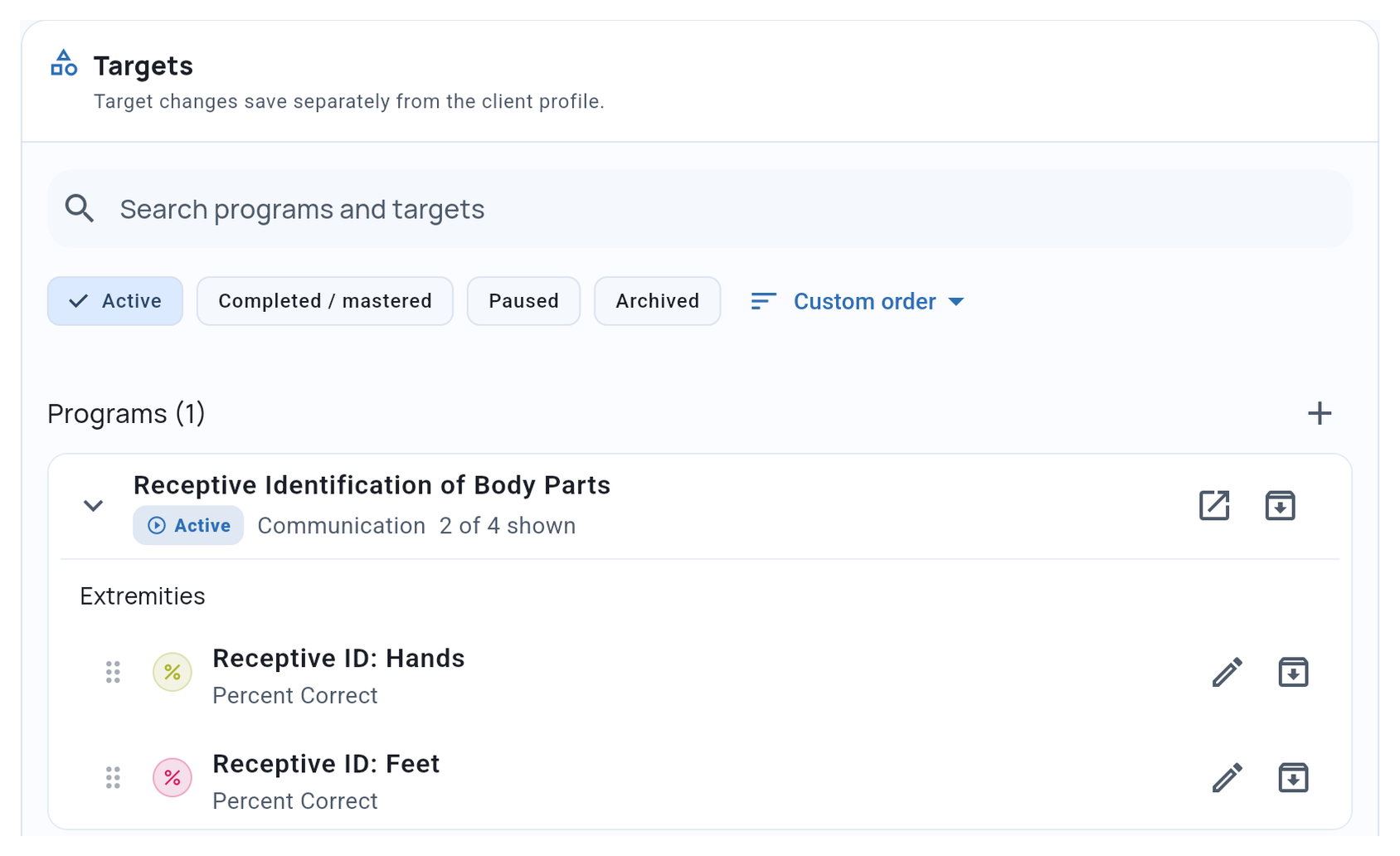
Mastered means mastery was recorded. Paused puts a program on hold. Archived keeps work out of ordinary collection while retaining its records. To collect a check on completed work, choose it for the session.
Set goal direction
Choose Increase for a measure you want to build and Decrease for one you want to reduce. Goal direction affects numerical objective comparisons and trend colors.
A green trend moves in the desired direction; a red trend moves away from it. These colors describe recent change, not a mastery decision. Open the graph to review the underlying observations.
Baseline and Intervention
Baseline and Intervention describe how observations are collected. Choose the mode separately from objectives and mastery.
For an existing target, open its details in Programs, open the options menu, and choose Switch to Intervention or Switch to Baseline. This control is in the target’s details menu, not its editing form.
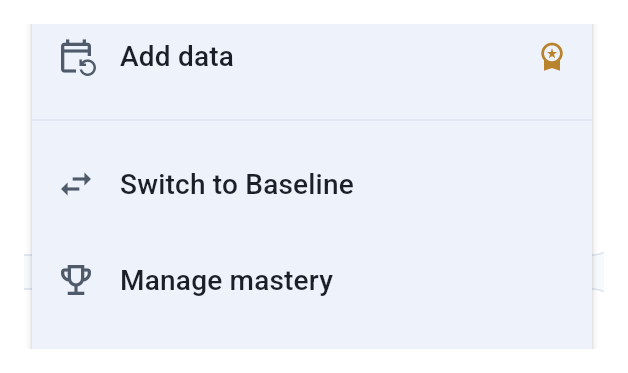
Changing mode does not mark the target mastered, and phase progression does not change mode for you. Review which periods count toward objective progress when interpreting Baseline data.
Limit where a target is available
In the target’s settings, use Availability for targets that apply only in certain places. Keep All settings, or choose settings such as Home or School. See Observation Settings for setup and session selection.
Related guides
- Objectives & Mastery Criteria - Set objectives, review mastery and reopen work.
- Understanding Programs - Decide when targets need a program or phases.
- Working with Graphs - Review results over time.
- Cross-Client Copy - Reuse target and program setup.