Delete or Clear a Service Record
Remove accidental record data while deciding whether the appointment should stay on the schedule.
Use service record deletion to remove accidental starts, duplicate records, training data, or a completed record that should not count toward the client’s data history.
A Service Record keeps an appointment with its notes and any live-session data or manually entered observations. If a live session is still ongoing, return to it and stop it first.
To find the record first, open the client’s Records tab.
Open the Delete Menu
Open the completed service record, tap the three-dot menu, then choose Delete record….
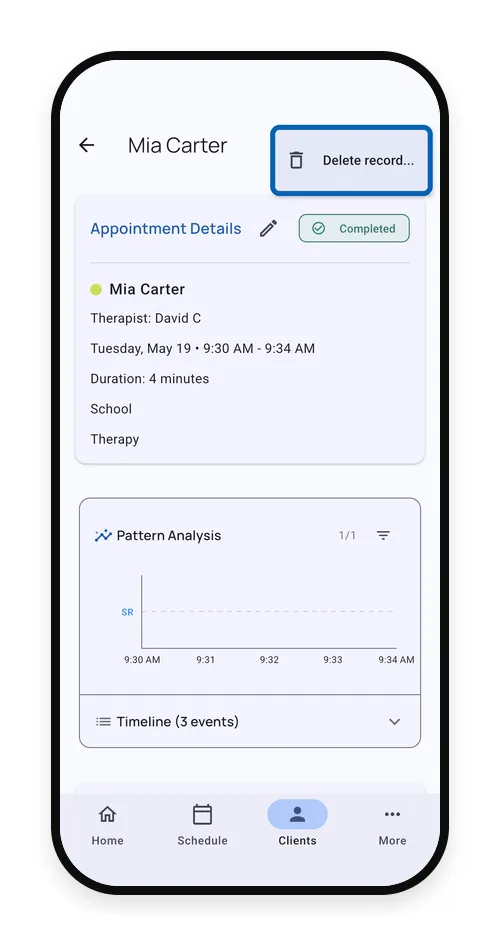
Choose What Should Stay
On Teams, you may be offered Keep appointment, remove data. On personal accounts, deletion removes the appointment and its data.
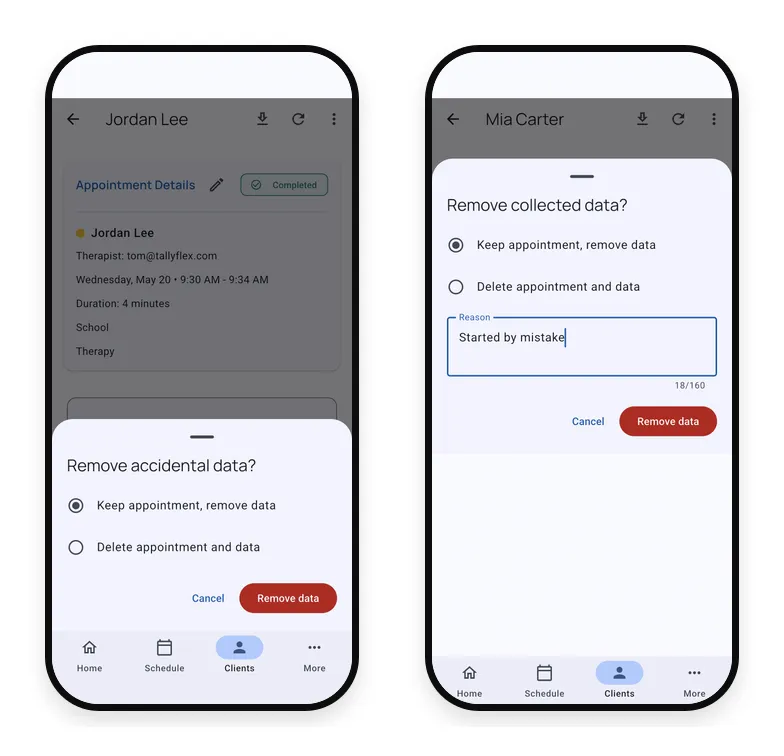
Clearing or deleting a manually completed record removes its linked observations and notes, including observations that were recorded separately before being added to the appointment. To keep an observation and only remove it from this appointment, use Unlink observation in Edit observations instead.
Keep appointment, remove data
On eligible team records, use this when the appointment is real, but the data should be cleared.
The appointment stays on the schedule; its data, timeline, and notes are removed. Give a short reason when prompted.
Delete appointment and data
Use this when the appointment itself should not remain on the schedule.
The appointment and its linked data are removed together. This is the right choice for duplicate appointments, test appointments, or appointments created for the wrong client.
After Data Is Removed
When you keep the appointment and remove data, the appointment returns to a scheduled state and shows that collected data was removed. For a manually completed appointment, its original scheduled times are restored.
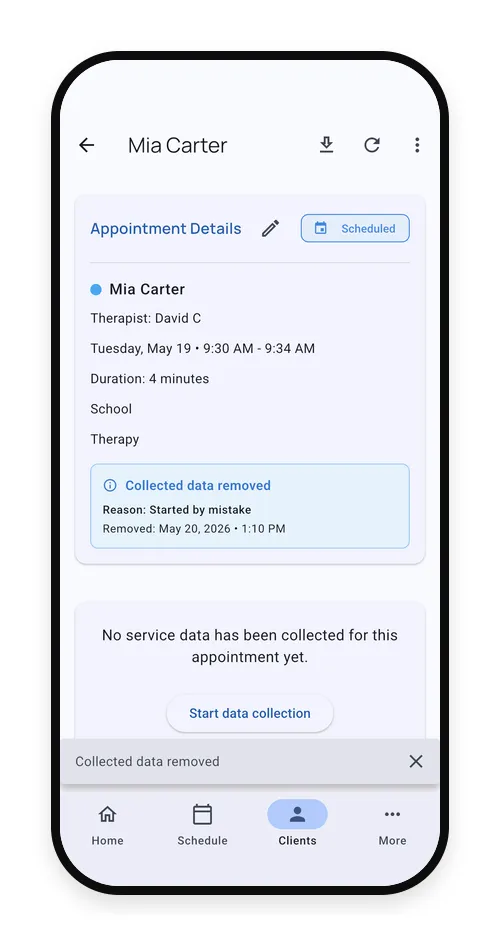
You can start data collection again from that appointment if the visit still needs a clean record.
Who Can Delete Records?
On solo accounts, the account owner can delete their own service records.
On team accounts:
- Client editors, admins, and owners can delete completed or data-bearing records.
- Trackers can remove their own same-day empty record when no data or notes were collected.
- Trackers can delete their own appointment-only records when no session data is linked.
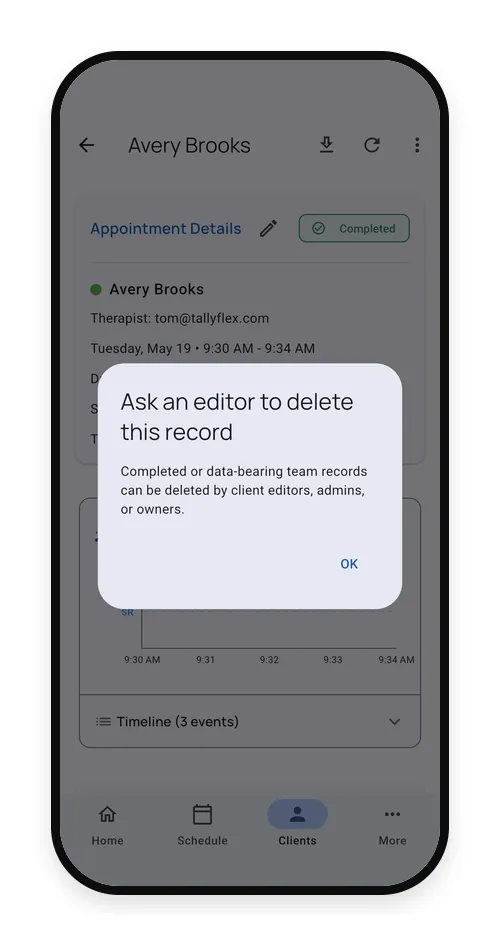
If you see this message, ask a client editor, admin, or owner to review the record.
When Not to Delete
If the session data is valid but needs a correction, edit the service record instead:
- For live-session data, adjust counts or values in the Session Summary
- For manually entered appointment data, use Edit observations and give a correction reason
- Fix the appointment time from the appointment details
- Add notes to explain clinical context
Delete only when the record or appointment should no longer be part of the client’s history.
If the record has been signed, use the signed-record correction workflow when available. See Signed Service Records.
What’s Next?
- Session Summary - Review and correct completed session data
- Records - Find appointment records and Service Records
- Signed Service Records - Handle signatures, review, and corrections
- Start Sessions from Appointments - Understand appointment status and session actions
- Team Roles and Permissions - Review team role and client access rules