Creating a Program
Walk through the 3-step wizard to build a structured program with targets.
Start a program
A program groups related targets, such as requesting help, a break, and an item. Programs are available on Solo and Teams.
Open a student or client profile and select Create Program. On a phone, open the Programs tab, tap +, and choose Create program.

Name the program
Enter a Program Name and choose the Category and Default Recording Method. New targets start with this recording method; you can choose a different method for individual targets.
Use More options if you want to add an operational definition or default mastery criteria. For objectives and mastery tracking, see Objectives & Mastery Criteria.
Add targets
Add the specific skills or behaviors you want to measure. You can enter several names separated by commas.
Choose Organize into phases (optional) when targets should be grouped into stages. Leave phases off when you do not need staged target groups. For each phase, choose whether completion requires all targets or a chosen number. See Auto-Progression and Mastery for those rules and what happens next.
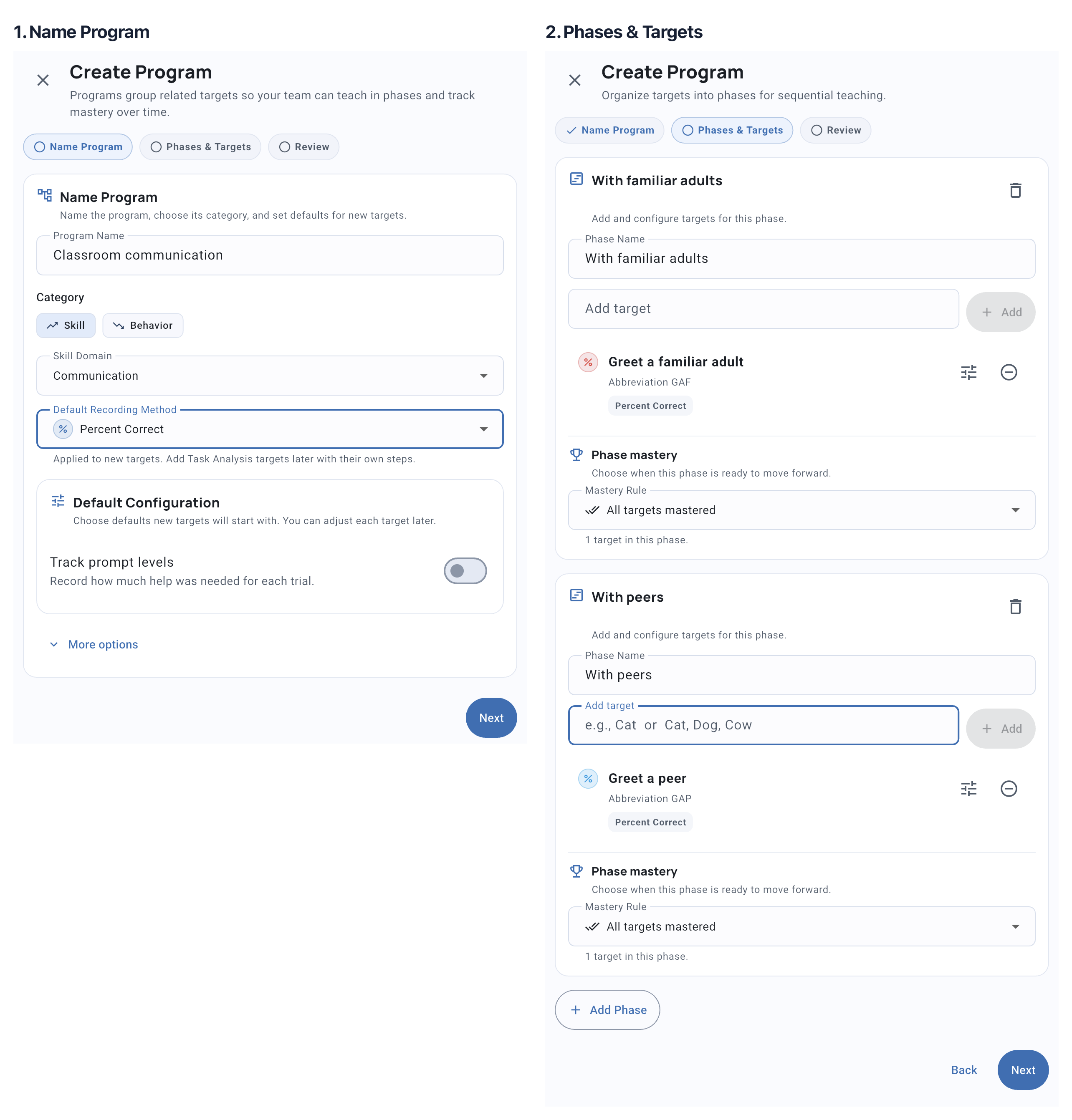
Select an image to view it at full size.
Review and create
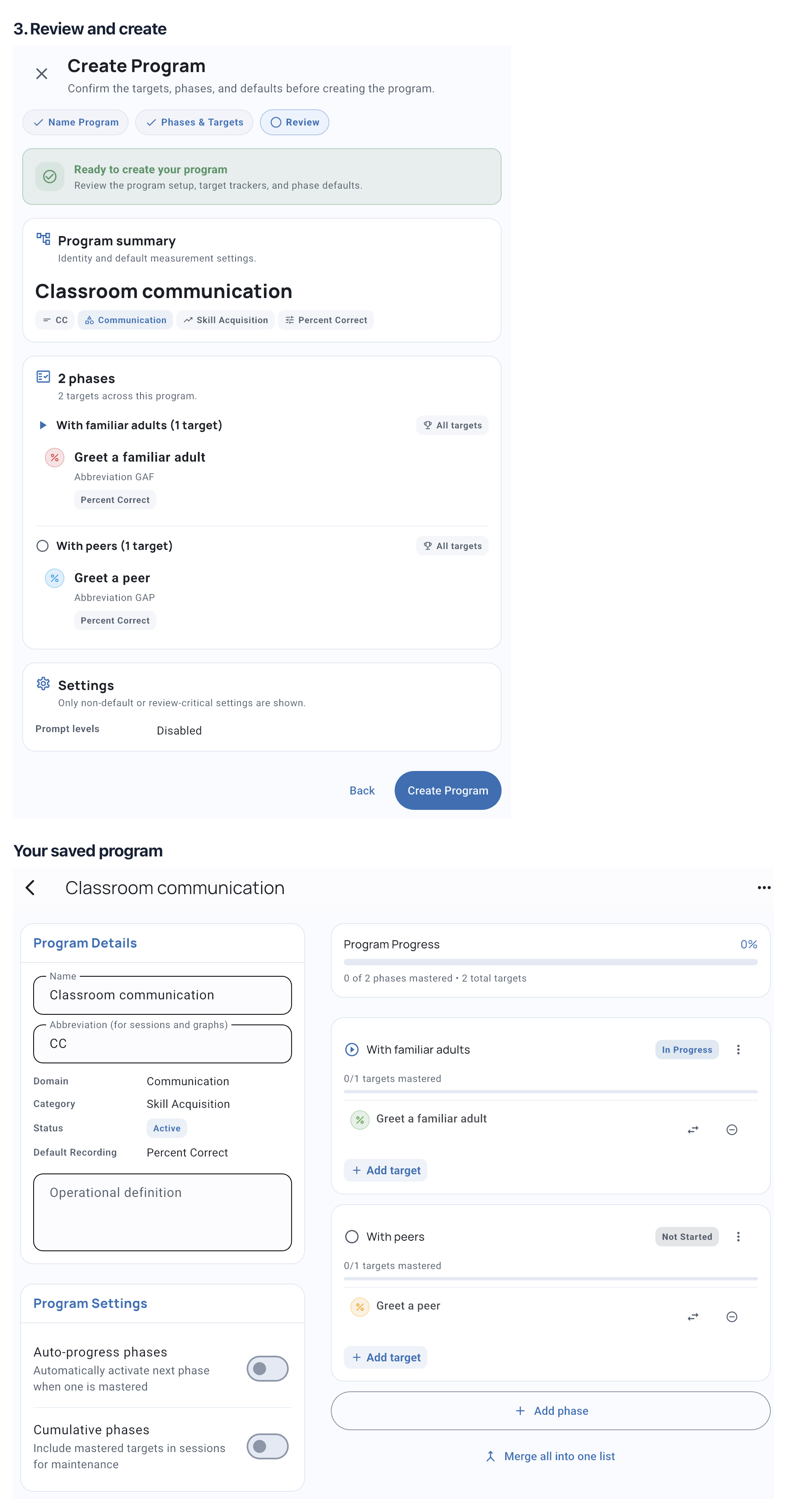
Check the targets and settings on Review, then select Create Program. The saved program opens so you can review its targets. You can find it again in the profile’s Programs tab.
Related guides
- Create a Student - Set up a profile first.
- Add a Behavior or Skill - Create a standalone target.
- Programs in Sessions - Collect data on program targets.
- Program Analytics - Review program progress.