Manual Data Entry
Enter observations after collection, across several targets or for one target at a time.
Add observations to a client without running an active session. Use the date, time, and values from your original observations.
For a visit on your schedule, document the past appointment to keep its observations, notes, and Service Record together. You can also add observations recorded here to an appointment later without entering them again.
Note: This documentation refers to “clients” and “students” interchangeably. Your terminology setting determines which term appears in the app.
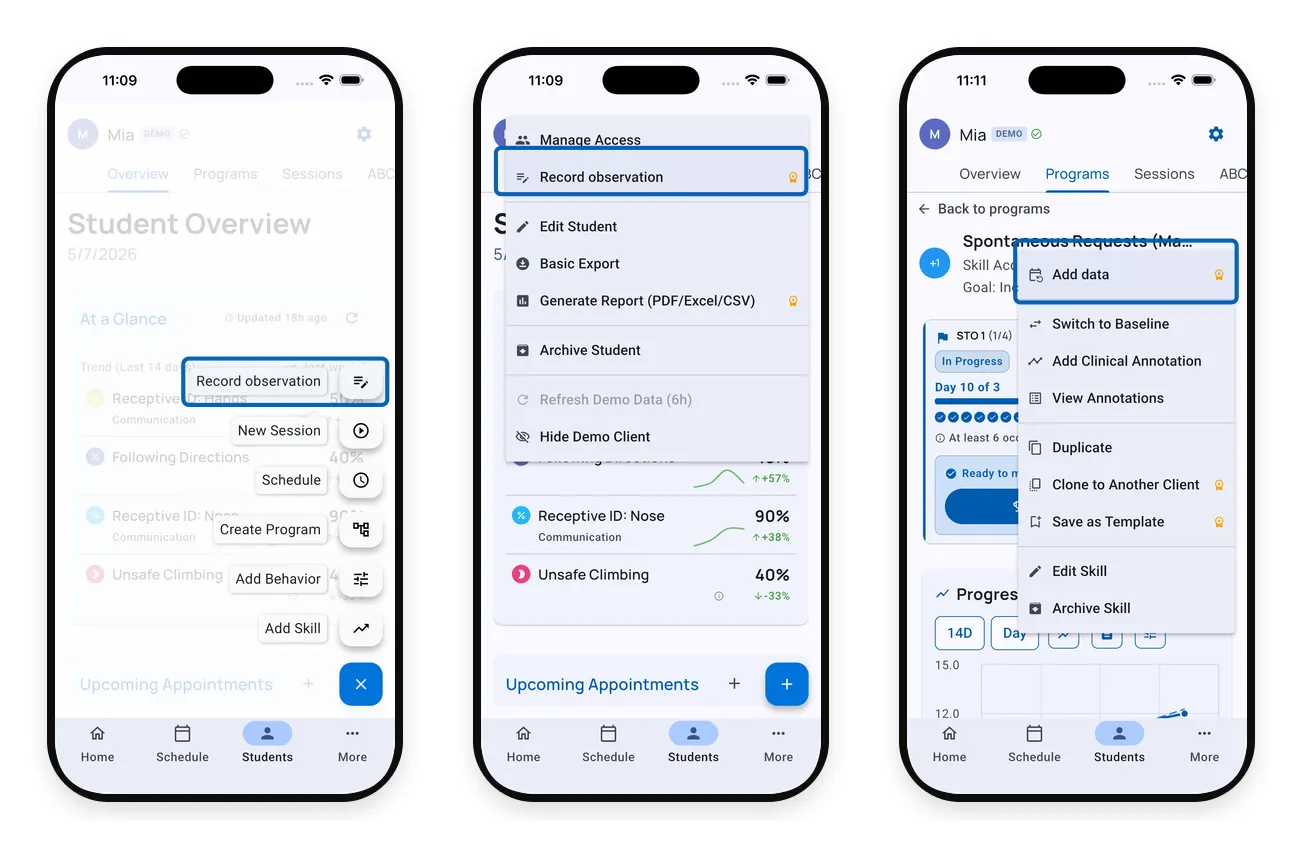
Choose where to enter data
| Action | Use it when | Open from |
|---|---|---|
| Record observation | Enter an observation across active behaviors and skills for one day | Client gear menu, or the floating + button on mobile |
| Add data | Add or backfill entries for a single tracker, on one day or many | Tracker gear menu (inside Skills, Behaviors, or a Program target) |
Record Observation
Use Record observation to enter data for several behaviors or skills observed during the same time period.
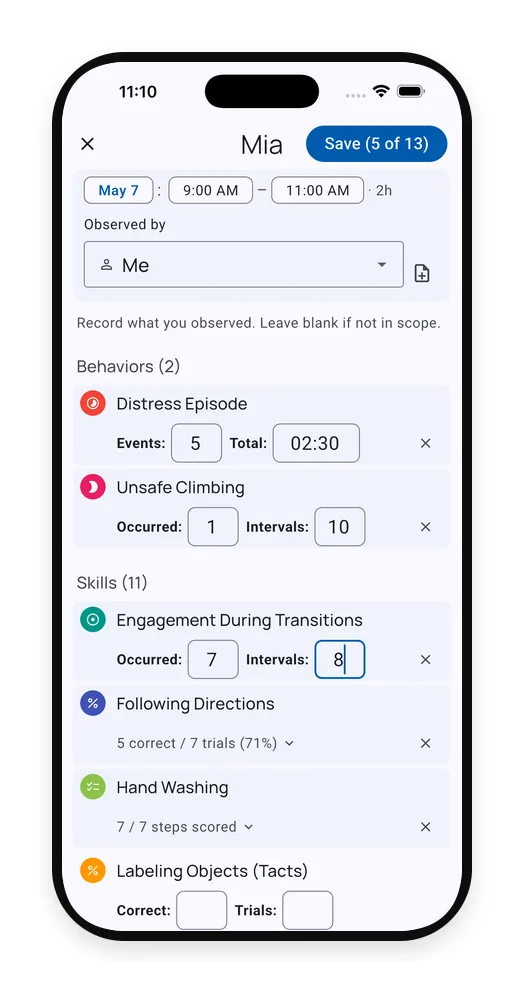
Set the date, time, and observer, then fill in only the targets you observed. Enter 0 for zero occurrences; leave unobserved targets blank. Check your entries before saving.
Add Data
Use Add data to enter observations for one behavior or skill across one or more dates.
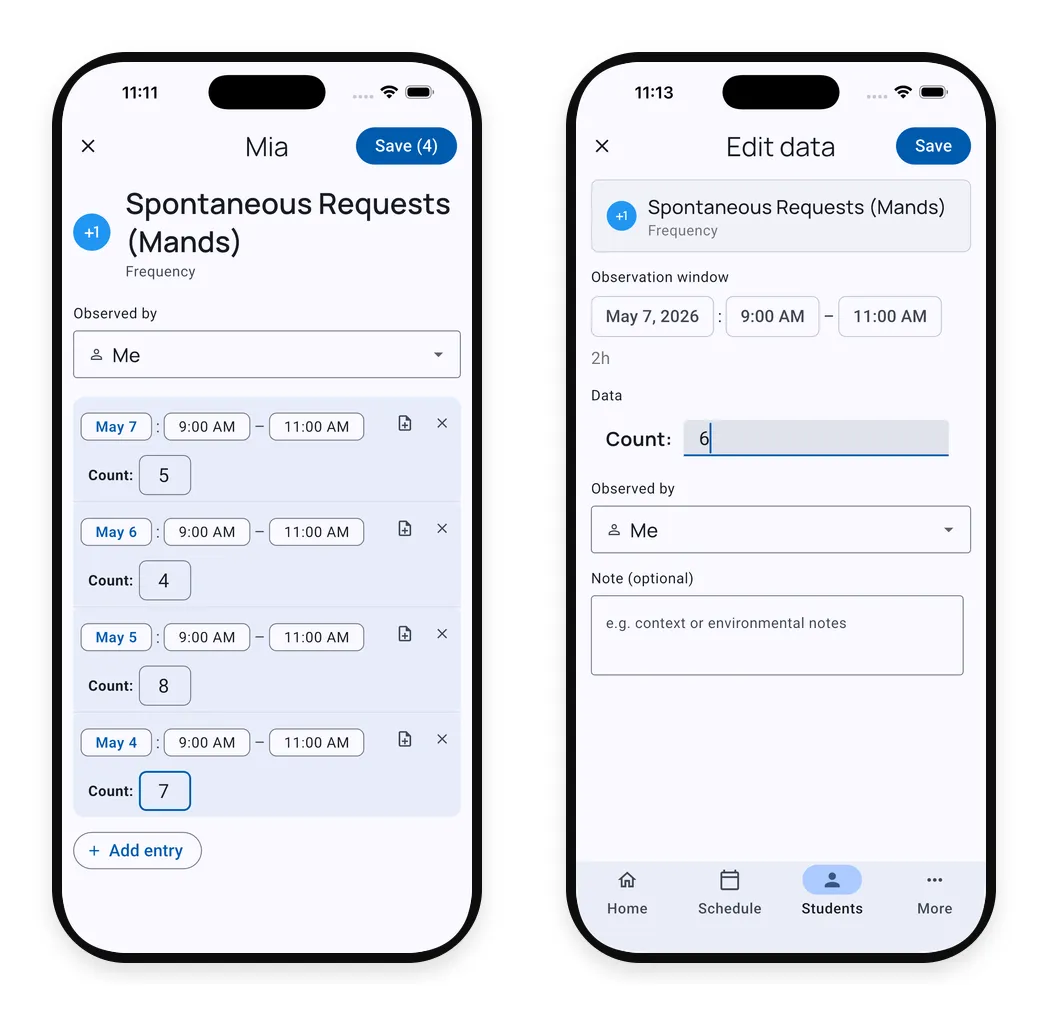
Open it from a tracker menu, add the dated rows you need, and check the values against your original observations before saving.
Where Manual Entries Appear
Manual entries appear in the same graphs and report views as session data, using whichever graph range or report grouping you choose.
In tracker details, manual entries sit beside session entries in Individual records:
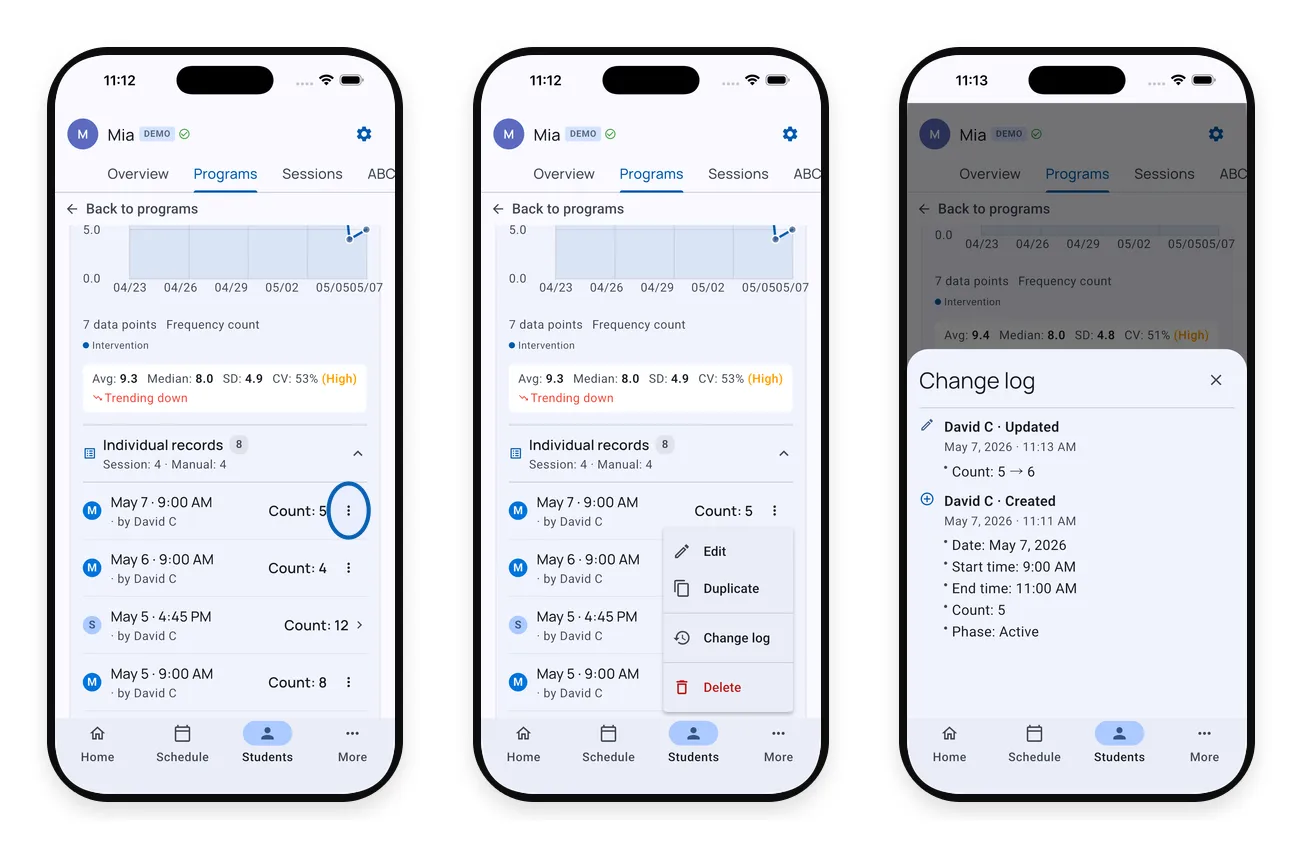
Use the row menu to review or correct an entry. On Teams, you can also see who recorded it and what changed.
Plan Availability
Manual data entry is included on Solo and Teams. On Free, try it with the Demo Client.
What’s Next?
- Records - Review completed sessions, appointment notes, and Service Records
- Working with Graphs - See your data on the progress graph
- Generate a Report - Include manual entries in client reports
Need Help?
Questions about manual data entry? Email support@tallyflex.com for assistance.